Tuesday, July 1, 2014

Office 365 Student Advantage Program


In an effort to help prepare students for the technology skills required in the workforce, Microsoft announced Student Advantage.

Currently enrolled students can now use Office every day for school work and activities that are most important to them. Office not only helps students stay organized and get their work done today but at the same time develops skills that will be required when they enter the work force.

There is NO COST to download and run the full versions of Office provided in the Student Advantage program. You can also access the Microsoft Mobile apps on smartphones or tablets


Who can install and use the Student Advantage Office products?
The subscription covers all currently enrolled UNA students with an Office 365 account.

How many copies of the software can I install?
Students can install the office software on up to 5 computers.

What Operating Systems and devices can I install the Office products on?
The student Advantage Office install will work on Windows 7 or greater, Mac OS X 10.6 or greater.

What is included with Office 365 ProPlus license?- Office 365 ProPlus for PC (Office 2013 ProPlus base applications)
- Office 365 ProPlus for Mac (Office 2011 for Mac base applications)
- Office Mobile for iPhone
- Office Mobile for Android


Will I be able to keep the copy of Office once I graduate or leave UNA?
No. The install of Office is tied to your username@una.edu  email account. You must log into Office 365 at least once every 30 days so Office can verify that you are still an enrolled student. If you are or were a student who is no longer enrolled and access to your email has been removed, the office installs you performed under the account will become read-only, so you will not be able to edit files with them.
 

UNA  participates in the Microsoft Student Advantage program. This program provides free access to the full versions of Microsoft Office to enrolled students for home use. Instructions on how to install the software are listed below:

 
Install Office Pro Plus from the Student Advantage Program

Introduction

Enrolled students at UNA are eligible to install the full version of Office Pro Plus as part of UNA's Office 365 Student email subscription. Below are instructions on how to install Office Pro Plus on a Windows 7 machine. The installation process is similar for Windows 8 and the Mac OS.

Procedure
1.  Using the computer you want to install Office on do the following: Login to your Office 365 email account at: https://outlook.com/una.edu
(email helpdesk@una.edu  if you do not know your Office 365 email account).

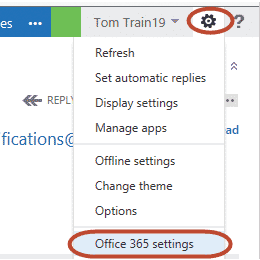
2.  Once logged in, click on the setting’s gear in the upper right corner and select Office 365 Settings.

3.  On the left side, select Software.

4.  The system will detect the operating system you are running and recommend the latest version of Office for you to install. Once you verify the version to install, click the Install button.

5.  If you are prompted to Run or Save the file, select Run.

6.  Microsoft Office will install in the back- ground and after a few minutes you will receive notice stating “Welcome to your new Office.” At this screen click Next.

7.  Follow the prompts through the installation, selecting the options you want.

8.  When all options are selected, a video will play explaining some of the features of Office. Once the video is done, it will ask you to Sign in. At the Sign in prompt, enter your username@una.edu email address, and click Next.

9.  Follow the remaining prompts and when complete you can begin to use the Office products.


Mac users will activate Office by:

- Opening office
- Select “Sign in to an existing office 365 Subscription”
- Type in your UNA Email Address
- Click Organizational Account
- Login with your UNA Email address and Unaportal Password.


Installation on Mobile Devices

Go to your app store on your mobile device (iTunes for iOS devices, Google Play for Android)

- Search for Office Mobile for Office 365 Subscribers (Note: On iPad,
        you may need to change search setting to "iPhone apps only").
- Install the app on your device.
- After the installation is complete, open the app.
- When prompted, enter your UNA student email address.
- Select Organization account and type your Unaportal password. 

Tuesday, June 18, 2013

Windows XP Support


As of August 15, 2013, UNA ITS will no longer support the Microsoft Windows XP operating system. 


Microsoft has already dropped Mainstream and Service Pack support on this product and will cease all support for Windows XP in April of 2014 ( http://support.microsoft.com/lifecycle/?c2=1173 ).  Ending UNA ITS support of XP will allow us to focus on newer and more secure Microsoft operating systems and to make some much needed Campus and Dorm wireless network changes, which are not supported with Windows XP.


UNA  Information Technology Services

Friday, May 10, 2013

UNA Network Outage

In an effort to finalize UNA’s move from a PBX-based phone system to a Voice-Over-IP (VoIP) system and to consolidate other resources, we need to relocate some vital equipment.  This relocation has been scheduled to begin on Friday, May 31st at 10PM.  During this relocation, all network services to and from off campus will be unavailable.  This means that from on campus, you will have no electronic access to off campus via UNA’s campus network.  This includes phone service from your office phone.  Also, during this time, this means that from off campus, you will have no electronic access to on campus resources via the Internet and UNA’s campus network.  This includes phone service to your office phone as well.  This network outage will affect East Campus as well.

We have contracted with AT&T to perform this move and plan to have this move completed before 8AM on Saturday, June 1st.  We hope that the timing of this upgrade will minimize any negative impact on the campus.  We apologize for any inconveniences this may cause but this is necessary step in the process of providing high quality service to UNA.

If you have any questions, please contact UNA’s IT helpdesk via e-mail at helpdesk@una.edu.

Thank you.

UNA Information Technology Services
http://www.una.edu/its

Wednesday, May 8, 2013

Microsoft Windows XP Operating System


As of August 15, 2013, UNA ITS will no longer support the Microsoft Windows XP operating system. 

Microsoft has already dropped Mainstream and Service Pack support on this product and will cease all support for Windows XP in April of 2014 ( http://support.microsoft.com/lifecycle/?c2=1173 ).  Ending UNA ITS support of XP will allow us to focus on newer and more secure Microsoft operating systems and to make some much needed Campus and Dorm wireless network changes, which are not supported with Windows XP.

We apologize for any inconvenience this may cause.

Wednesday, March 20, 2013

Spring Break e-mail upgrade – UPDATE

We had originally announced on February 25, 2013 that our e-mail system would be down during the week of Spring Break due to an upgrade to Office 365. This has changed. Due to a scheduling conflict with Microsoft that we have been unable to resolve, the upgrade WILL NOT take place during our Spring Break week. 

This upgrade is still necessary and we are working to be as prepared as possible until Microsoft’s schedule clears. We are also working on an appropriate timeline for UNA to minimize the business impact for us. As soon as we have more definitive information regarding this upgrade and Microsoft’s schedule, we will inform the campus.

Phone Outage Reminder

ITS is scheduling the last phase of the new phone system implementation on March 25th thru March 27th. This will require ITS to take the phone system offline during this time. Once this process has been completed we will be able to shut down and remove the old PBX.

Sorry in advance for any inconvenience this may cause.

Thanks for your patience and understanding during this transition.


Tuesday, February 26, 2013

Social Engineering Red Flags


PDF 0-day Vulnerability

Last week, Adobe warned customers that a few new exploits that target Acrobat Reader were being exploited in the wild. Keep an eye out for patches that are expected soon. The exploits are particularly nasty, as they use a new blackhat technique to escape the sandbox technology used in reader. The irony is that this sandbox was created to prevent the impact of vulnerabilities such as these. PLEASE BE VERY CAUTIOUS BEFORE you open any PDF you did not ask for. Link: http://www.adobe.com/support/security/advisories/apsa13-02.html

The link below is a Social Engineering Red Flag document (yes, ironically it -is- a PDF) with the 22 Red Flags you need to watch out for. It contains Kevin Mitnick's 30+ year hacking experience distilled into one page you can stick on the wall!

Link: https://s3.amazonaws.com/knowbe4.cdn/SocialEngineeringRedFlags.pdf

Source: CyberheistNews - http://www.knowbe4.com/cyberheist-news/

Monday, February 25, 2013

E-Mail upgrade and downtime


We are writing to inform you that we will be upgrading our e-mail system during our Spring Break.  Our system will be upgraded from Microsoft’s Live@EDU system to their latest product, Office365.  Some of the benefits will be:

·         Mailbox size (quota) will increase from 10GB to 25GB (2.5 times the current storage)

·         You will have access to Word, Excel and other Office applications online

·         Access to SharePoint Online to allow online collaboration

·         Your e-mail address will NOT change

·         Your password will NOT change

This change is necessary due to Microsoft’s requirements and end of support announcement for its Live@EDU product.  Our upgrade timing was selected to utilize funding available from Microsoft and minimize the financial and business impact at UNA. Also, as time draws near to the upgrade, we will send reminders regarding this outage and more information regarding the upgrade itself.  For information regarding Office365, you can view our web site at http://www.una.edu/its/office365/index.html.

This downtime will begin on Friday, March 22, 2013 at 4:30PM and may last throughout our Spring Break.  During this time, your UNA e-mail WILL NOT be available via any method (UNAPortal, outlook.com, Outlook or other client on your computer, smart phones, tablets, etc.).  If you will require e-mail communication with individuals during that time, please notify them and provide an alternate e-mail address for them to use.

During the upgrade, please monitor the UNA website (www.una.edu), UNA’s Facebook page (https://www.facebook.com/northalabama), UNA’s Twitter account (https://twitter.com/north_alabama) and the UNAPortal Login Page (http://unaportal.una.edu) for updates.  We will attempt to keep you up-to-date via these outlets as progress is made.

If you have any questions regarding this update, please send an e-mail to helpdesk@una.edu.

Monday, February 4, 2013

Scheduled Phone Outage


ITS is scheduling the last phase of the new phone system implementation on March 25th thru March 27th.  This will require ITS to take the phone system offline during this time.  Once this process has been completed we will be able to shutdown and remove the old PBX. 
Sorry in advance for any inconvenience this may cause. 

Thanks for your patience and understanding during this transition.
Randall Phifer

Sunday, February 20, 2011

Self-Service Banner New Look

Beginning Saturday, February 19, 2011, Self-Service Banner will have a new look in terms of page colors and presentation and there is additional functionality, such as bread crumbs.  The changes will result in improved aesthetics and should provide a richer, more user-friendly experience.    In short, Self-Service may look different, but it will still function as before (i.e. the clicks are still the same).  Thank you for your understanding as we strive to improve your online experience at UNA.

Wednesday, September 22, 2010

Attention Outlook Users

If you are using Outlook client on your PC, you may be experiencing the following problems:


1. Outlook losing connection to Live@Edu email  for a period of time, anywhere from one hour to 3 hours.

2. See a delay in incoming email to your inbox.

Please note if you experience any of the above problems, you need to access email via Unaportal or log directly into your email at http://outlook.com/una.edu When logging in via http://outlook.com, your username will be your full email address and your password will be your Unaportal password.

We have an open ticket with Microsoft Support Technicians and hope to have the problems resolved soon.

Thank You,
Randy Horn
Director of Computer Services and Telecommunications

Tuesday, September 7, 2010

Junk Email Information

Please check your “Junk Email” folder for mail that may have gone there by mistake. If you find mail in the Junk folder that should not be there, please do the following:


If you are reading email from Unaportal:

1. Right click on the email

2. Click on “Junk E-Mail”

3. Click “Mark as Not Junk”

4. Check box to always trust messages from this sender.

If you are reading email from Outlook:

1. Right click on the email

2. Click on “Junk”

3. Click “Not Junk”

4. Check box to always trust messages from this sender.

Once you do this, the email will be moved to your inbox and any future emails from this sender will go to your inbox.

Entourage Users:

1. Click on junk mail folder

2. Click on red link at top of mail that warns about junk email.

3. Click on one of the three options (add user to contacts, mark all mail from sender as not junk, mark just THIS mail as not junk)


If you have questions or problems, please email helpdesk@una.edu

Thank You,
UNA Computer Services Support Team

Monday, August 30, 2010

Quick Answers to Common Email Questions

Why Does My Outlook Not Work?

If you were using Outlook with the old email system, your Outlook must be re-configured to work with the new system. This will include removing the old email account and adding the new account. Please use this link for instructions to configure Outlook:

http://www.una.edu/compcenter/live/How%20to%20Setup%20Outlook%20for%20Windows%20Live.pdf

If I use Outlook Express(all versions) or Outlook 2003, what do I do?
Outlook Express and Outlook 2003 will not work, please email cpsupport@una.edu for an upgrade.

I keep entering my username and password, but it will not log me in on Outlook or my Smart Phone?
When using Outlook or configuring your smart phone, your username will be jdoe@una.edu note, it is your FULL EMAIL ADDRESS with the @una.edu

I changed my password in Unaportal, but it does not work?
Please note when changing your password in Unaportal, do not use any part of your username, first name or last name.

It is recommended best practice to never use a name or dictionary word as a part of your password.

I saved my personal address book as instructed, but it is not showing in my new UNAPortal Address book?
You must configure Outlook for the new email system then import the saved address book into Outlook.

The link below contains all the information needed to completely configure your Outlook, Smart Phones, Address Books and Calendars:

http://www.una.edu/compcenter/live/index.html

As always please email helpdesk@una.edu for all questions and problems.

Thank You,
Computer Services Tech Support

Tuesday, August 24, 2010

CAUTIONARY Notice: FedEx and UPS virus emails

FedEx and UPS virus emails


Some UNA users have received an older email scam which attempts to convince email recipients to open an attached .zip file. The email appears to be from either FedEx or UPS and urges the user to open an attached invoice file. The .zip file, supposedly the invoice, contains a virus. This file should NOT be opened.

Delete suspicious email.

Please remain suspicious of any email asking for personal information or offering unlikely promotions. Phishing emails and email scams are increasing as the nation returns to school.


Randall Horn
Director, Computer and Telecommunications Services
University of North Alabama

Wednesday, August 11, 2010

Phishing Attempt-Your Mailbox Has Exceeded The Storage Limit-Changes in Spam Filtering at UNA

The two email messages below has been received by several UNA users. It is a phishing email so please delete it.

EMAIL #1

From: ri.Trimiew.Timonica [ri.Trimiew.Timonica@mail.bryantstratton.edu]
Sent: Wednesday, August 11, 2010 12:40 PM
Subject: Your Mailbox Has Exceeded The Storage Limit

Your Mailbox Quota Has Exceeded The Set Quota/Limit Which Is 20GB.
You Are Currently Running On 23GB Due To Hidden Files
And Folder On Your Mailbox.

Please Click the Link Below To ValidaAte Your Mailbox And Increase Your Quota.

Click here http://www.formstack.com/forms/?990182-clGAIggSKk

Failure To Click This Link And Validate Your Quota May Result In Loss Of Important Information
In Your Mailbox/Or Cause Limited Access To It.

Thanks
System Administrator


EMAIL #2

From: Webmail Administrator [ddewey@villanova.edu]
Sent: Wednesday, August 11, 2010 1:11 AM
Subject: Webmail Quota/Storage Upgrade
________________________________________

To ensure quick, responsive e-mail services, it is necessary to establish
limits on the amount of e-mail each user may store on the system.
The volume of e-mail you are storing on the Central e-mail system is
now exceeding your normal space allocation. To request for more
storage space on your webmail account, simply click here


You may see a change in the amount and nature of spam/malicious email you receive now that we’ve converted to Microsoft Live@edu. In the past UNA provided spam/virus filtering but that is no longer an option. Now Microsoft provides spam/virus filtering for all UNA mail.


Thank You,
Randy Horn


Director of Computer Services and Telecommunications